 hemal
hemalIf you are still manually updating statuses, copying and pasting data between emails, or constantly nudging your team on Slack, you aren’t using Airtable to its full potential. (Airtable automation)
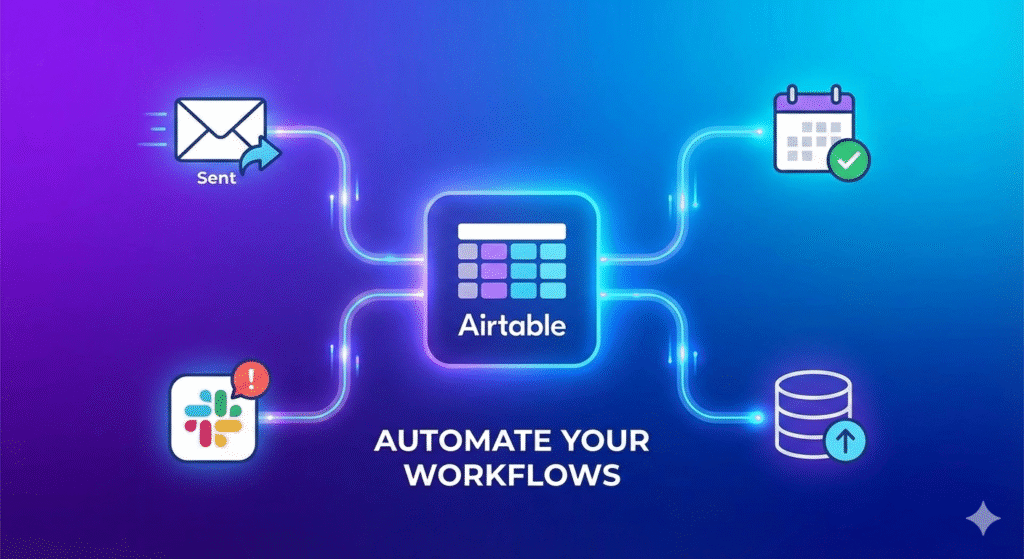
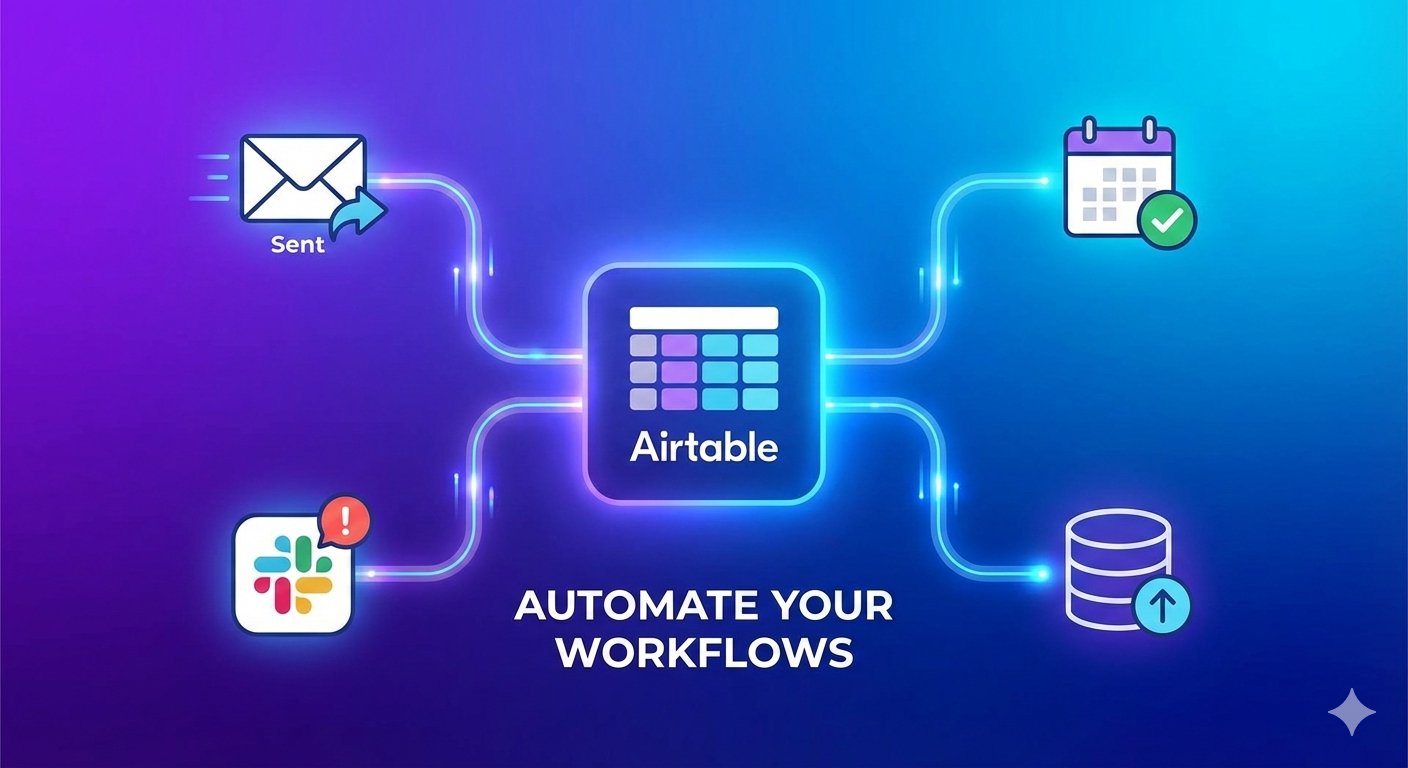
While most people know Airtable as a “spreadsheet on steroids,” its true power lies in Airtable Automation. This built-in feature allows you to turn your static database into an active operating system that works for you while you sleep.
In this guide, we’ll break down exactly what Airtable automation is, five killer use cases you can steal, and whether you still need tools like Zapier.
What is Airtable Automation?
Airtable Automation is a native feature that lets you build “If This, Then That” workflows directly inside your base. It eliminates the need for repetitive manual tasks by triggering actions automatically when data changes.
Every automation consists of two core parts:
- The Trigger: The event that starts the process (e.g., When a record is created, When a form is submitted, At a scheduled time).
- The Action: What happens next (e.g., Send an email, Update a record, Send a Slack message).
Top 5 Airtable Automation Use Cases
Not sure what to automate? Here are five proven workflows that save businesses hours every week.
1. The “Client Updater” (Email Automation)
The Problem: You manually email clients every time their project status changes.
The Fix: Set up an automation that triggers when a status field changes to “Completed.”
- Trigger: When record matches condition (Status = Completed).
- Action: Send an email (Gmail/Outlook) to the client with the subject “Your project is ready!” and attach the file from the record.
2. The “Team Nudge” (Slack Notifications)
The Problem: High-priority leads sit in your CRM because no one noticed them.
The Fix: Instant notifications for high-value opportunities.
- Trigger: When a record enters a view (View = “High Value Leads > $10k”).
- Action: Send a message to your Sales Channel in Slack: “🔥 New Hot Lead: [Name] just signed up!”
3. The “Recurring Task” Generator
The Problem: You forget to do weekly admin tasks like invoicing or content reporting.
The Fix: Schedule automatic task creation.
- Trigger: At a scheduled time (e.g., Every Monday at 9:00 AM).
- Action: Create a new record in your “Tasks” table with the name “Weekly Invoice Review” and assign it to yourself.
4. The “Form Router”
The Problem: All submissions from your website form go into one big pile, making it hard to sort support tickets from sales inquiries.
The Fix: Automatically categorize and assign incoming data.
- Trigger: When a form is submitted.
- Action: Update record.
- Logic: If the “Inquiry Type” is “Support,” automatically set the “Department” field to “Customer Success” and tag the Support Manager.
5. Social Media Scheduler
The Problem: Paying for expensive tools like Buffer or Hootsuite when you already have Airtable.
The Fix: Post directly to social media from your content calendar.
- Trigger: When a record matches condition (Status = “Ready to Publish” AND Date = Today).
- Action: Update Twitter/X status (Post the content from the “Tweet Text” field).
Airtable Automation vs. Zapier/Make: Which is Better?
A common question is: “Do I need Zapier if Airtable has automations?”
The answer depends on where your data needs to go.
| Feature | Airtable Automation | Zapier / Make |
| Best For | Internal database logic & simple notifications. | Connecting 1,000+ different apps together. |
| Cost | Included in your plan (Free/Paid). | Separate subscription required. |
| Speed | Instant (Native). | Can have delays (depending on plan). |
| Complexity | Low to Medium. | High (Multi-step paths, data formatting). |
The Verdict: Start with Airtable Automation. If you need to connect to an obscure app or perform complex data formatting that Airtable can’t handle, then use Zapier.
Important: Know Your Limits
Before you build a massive system, be aware of Airtable’s “Automation Runs” limits per month. An automation “run” counts every time a trigger fires.
- Free Plan: 100 runs / month (Good for testing)
- Team Plan: 25,000 runs / month (Sufficient for most small businesses)
- Business Plan: 100,000 runs / month (For power users)
Tip: If you have a “loop” error where an automation triggers itself endlessly, you will drain your monthly limit in minutes! Always test carefully.
How to Create Your First Automation (In 3 Steps)
Ready to build? Follow this simple recipe to creating a “Welcome Email” automation.
- Open the Automations Panel: Inside your Base, click “Automations” at the top right corner.
- Set Your Trigger: Click “Create Automation” > “+ Add Trigger”. Select “When form is submitted.” Choose your specific feedback or signup form.
- Add Your Action: Click “+ Add Action” > “Send an email.”
- To: Select the email field from the form submission step.
- Subject: “Welcome to the family!”
- Message: Type your welcome message. You can insert the person’s name dynamically by clicking the blue “+” button.
Turn it on, and you’re done!
Conclusion
Airtable automation is the bridge between storing data and acting on it. By setting up just a few simple workflows, you ensure that nothing slips through the cracks, clients are communicated with instantly, and your team stays aligned—all without lifting a finger.