
AI and Software Development Company | Tech Biz Builders

N8N

N8N

Step-by-Step Guide: Installing n8n Self-Hosted in Docker on Your Local Server

Step-by-Step Guide: Installing n8n Self-Hosted in Docker on Your Local Server Welcome to this comprehensive guide on installing n8n, a powerful workflow automation tool, self-hosted using Docker. This tutorial will walk you through the entire process from setting up your local server to configuring n8n for optimal performance. By following these steps, you’ll have a fully functional n8n instance running on your own server, ready to automate tasks with ease. | n8n self-hosted Docker installation Prerequisites To begin installing n8n self-hosted in Docker, make sure your local server meets the following requirements: Docker and Docker Compose: Ensure both Docker and Docker Compose are installed on your machine. You can download them from the official Docker website. Minimum System Requirements: A basic server setup with at least 2GB of RAM and sufficient disk space. Installing Docker and Docker Compose Before proceeding, let’s quickly set up Docker and Docker Compose on your system. Follow the official installation guides: Docker Installation Guide Docker Compose Installation Guide Creating the Docker Compose File Next, create a directory on your server where you’ll store all n8n files. Navigate to this directory and create a new file named `docker-compose.yml`. Open it in your preferred text editor and paste the following content: version: ‘3’ services: n8n: image: n8nio/n8n container_name: n8n restart: unless-stopped environment: – NODE_ENV=production – DB_TYPE=sqlite – WEBHOOK_URL=http://localhost:5678/webhook ports: – 5678:5678 – 5679:5679 volumes: – ./data:/home/node/.n8n/data This configuration sets up a basic n8n instance with SQLite as the database. Adjust the `WEBHOOK_URL` as needed based on your server’s IP address and port. Starting n8n Using Docker Compose To start n8n, run the following command in the terminal: docker-compose up -d This command will download the necessary Docker image and start the n8n container. You can check the status of the container with: docker-compose ps Accessing the n8n Web Interface Once the container is up and running, open a web browser and navigate to http://localhost:5678. You should see the n8n login page. The default username and password are both `admin`. Be sure to change these immediately for security reasons. Configuring n8n for Optimal Performance To optimize your n8n setup, consider the following configurations: Enabling SSL/TLS: For secure communication, set up an SSL certificate. You can use Let’s Encrypt for free certificates. Increasing Resources: If you’re running complex workflows, ensure your server has enough resources. Adjust the memory and CPU limits in Docker if necessary. Customizing Webhook URLs: Configure webhook URLs according to your needs. This might involve setting up reverse proxies or using a service like ngrok for local development. Conclusion Congratulations on successfully installing n8n self-hosted in Docker on your local server! With this setup, you have a powerful tool at your disposal for automating workflows. Remember to regularly update n8n and its dependencies to ensure optimal performance and security. Happy automating! Image by: Brett Sayles

N8N

How to Set Up n8n Self-Hosted on a Raspberry Pi for Ultimate Automation

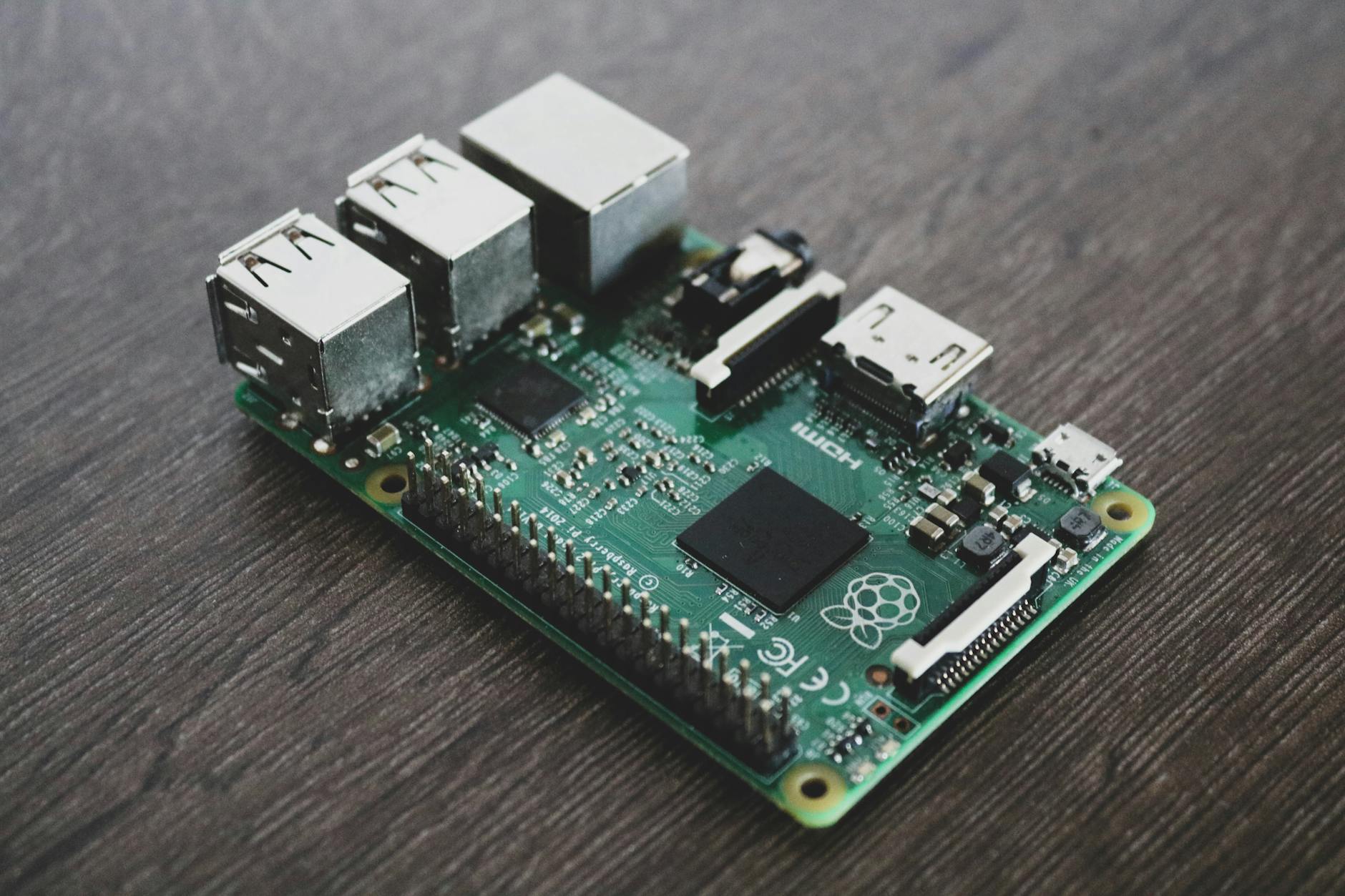
How to Set Up n8n Self-Hosted on a Raspberry Pi for Ultimate Automation Are you looking for a powerful, yet affordable solution for automating your tasks? Setting up n8n self-hosted on a Raspberry Pi can be an excellent choice. This guide will walk you through the entire process, from installing necessary software to configuring n8n for optimal performance. By the end of this article, you’ll have a fully functional automation platform ready to streamline your workflows. Why Use a Raspberry Pi? The Raspberry Pi is an excellent choice for self-hosting n8n due to its low cost and compact size. It’s perfect for home use or small businesses looking to automate tasks without breaking the bank. With a Raspberry Pi, you can keep your automation infrastructure on-premises, ensuring complete control over your data. Hardware Requirements To get started, you’ll need: – A Raspberry Pi 4 (recommended) – MicroSD card with at least 8GB of storage – Power supply (5V, 3A) – Ethernet cable or Wi-Fi adapter Setting Up the Raspberry Pi Begin by installing the latest version of Raspberry Pi OS on your MicroSD card. You can download it from the official Raspberry Pi website. Once installed, boot up your Raspberry Pi and update all packages using the following commands: sudo apt-get update sudo apt-get upgrade Installing n8n n8n can be easily installed on your Raspberry Pi using Docker. Docker containers provide a lightweight and portable way to run applications, ensuring that dependencies are managed correctly. Create a directory for n8n: mkdir ~/n8n cd ~/n8n Pull the official n8n Docker image: docker pull n8nio/n8n Run n8n using Docker: docker run -d –name n8n -p 5678:5678 n8nio/n8n Accessing the n8n Interface Once n8n is running, you can access it by opening a web browser and navigating to http://localhost:5678. You should see the n8n login page. The default username and password are both “admin”. It’s highly recommended to change these credentials immediately for security reasons. Configuring n8n n8n offers a wide range of connectors and nodes, allowing you to automate almost any process. To get started, create a new workflow by clicking on the “+” icon. Drag and drop nodes from the left panel onto the canvas. Connect these nodes with lines to define the flow of your automation. Example Workflow Let’s create a simple example workflow that checks for new emails in your inbox and sends an SMS notification if you receive one: Add a Google Sheets node to fetch emails from your inbox. Add a Twilio node to send an SMS notification. Connect the two nodes with a line and configure them accordingly. Conclusion By following these steps, you’ve successfully set up n8n self-hosted on your Raspberry Pi. This setup allows you to automate tasks efficiently without any monthly fees or dependencies on third-party services. With its flexibility and low cost, n8n is an excellent choice for anyone looking to streamline their workflows. Remember to regularly update n8n and monitor your system’s performance to ensure it remains stable and efficient. Happy automating! Image by: Alessandro Oliverio

No-Code Automation

Complete Guide to API Integration: Connect Any App Without Coding

How to No-Code API Integration Table of Contents Introduction API integration is the backbone that connects modern software and apps, enabling seamless data flows and powerful automated workflows. Traditionally, API integration required developers writing complex code, making it inaccessible for many businesses. This guide breaks down API integration in simple terms and shows how you can connect any app without writing a single line of code using no-code tools. What is API Integration? An API (Application Programming Interface) acts like a bridge between two applications, allowing them to communicate and exchange data securely and efficiently. API integration means setting up this communication so you can automate workflows such as syncing customer data, triggering alerts, or aggregating reports across apps. Why No-Code API Integration Matters No-code API integration platforms empower business users, marketers, and product managers to build powerful, custom workflows without needing developer resources. This accessibility reduces time to launch, lowers costs, and fuels innovation. From syncing CRM data to automating lead capture, no-code API tools unlock automation potential for all skill levels. How to Connect Any App Without Coding Top No-Code API Integration Tools in 2025 Each platform has unique strengths, so choose based on budget, technical skill, and required complexity. Step-by-Step API Integration Tutorial for Beginners For example, syncing Google Sheets with a CRM using Zapier: Best Practices and Tips Conclusion No-code API integration is transforming how businesses automate workflows and connect software. With this complete guide, even beginners can confidently create powerful integrations without programming knowledge. Start small, select the right platform, and gradually expand your automation capabilities for greater efficiency and growth. Would you like a tutorial tailored to a specific integration or a comparison of no-code API tools for your use case?

AI Automation

How to Build a No-Code AI Chatbot That Actually Converts Customers

How to Build a No-Code AI Chatbot Table of Contents Introduction In the digital age, customers expect instant and personalized interactions. Businesses eager to meet these expectations are turning to AI chatbots. Yet, many hesitate due to perceived technical complexity. This guide demystifies the process by showing how to create a no-code AI chatbot that not only interacts but converts — all without needing to write a single line of code. Why No-Code AI Chatbots Are Game-Changers No-code platforms empower businesses to build intelligent chatbots quickly, saving development time and costs. AI integration ensures conversations feel natural, improving customer satisfaction and driving higher engagement. The best no-code AI chatbots go beyond basic automation by understanding intent, offering personalized recommendations, and guiding users toward decisions that matter. Step-by-Step Guide to Building Your Chatbot Step 1: Define Your Chatbot’s Purpose and Goals Start by clarifying what your chatbot should achieve. Are you capturing leads, providing customer support, or driving sales? Clear goals will shape your conversational design and AI capabilities. For example, a lead capture chatbot must gather emails, while a sales chatbot should highlight product benefits with persuasive messaging. Step 2: Choose the Right No-Code AI Chatbot Builder Select a platform that combines ease of use with powerful AI features. Popular options include: Step 3: Design Conversational Flows That Engage Map out typical customer journeys and create dialog paths. Use question-answer sequences, quick replies, and buttons to guide users seamlessly. Avoid overwhelming users with long messages; keep interactions concise and purposeful. Including fallback responses anticipates unexpected inputs and preserves user experience. Step 4: Integrate AI with Personalized Responses Incorporate AI-powered NLP (Natural Language Processing) to interpret user intent and respond intelligently. Many no-code platforms offer built-in AI modules or integration with services like OpenAI’s GPT models. Personalization boosts conversions—use collected user data to tailor recommendations and offers dynamically. Step 5: Test, Optimize, and Launch Your Chatbot Before going live, rigorously test all conversational paths, logic branches, and integrations. Collect feedback from test users to identify friction points or confusing flows. Use analytics provided by chatbot platforms to track engagement and conversion metrics post-launch to continuously refine performance. Best Practices to Maximize Conversion Conclusion Building a no-code AI chatbot that converts customers is within everyone’s reach with the right approach. By focusing on clear goals, choosing suitable platforms, designing engaging flows, and leveraging AI personalization, businesses can delight customers and boost revenue without complex development. Start small, test often, and scale your chatbot’s capabilities as you learn—automation success awaits.

Automation Tools

Zapier vs Make.com vs N8N: The Ultimate 2025 Comparison (With Pricing Breakdown)

Zapier vs Make.com vs N8N Table of Contents Introduction Choosing the right automation platform is critical to boosting business workflows and reducing manual tasks. In 2025, Zapier, Make.com, and N8N remain top contenders, each offering unique strengths and pricing models. This blog provides a comprehensive comparison of these tools, highlighting their pricing, integrations, capabilities, and ideal use cases to help you decide which fits your needs best. Overview of Zapier, Make.com, and N8N Zapier is the most popular automation tool, known for its extensive app integrations and user-friendly interface. Make.com (formerly Integromat) offers a powerful visual workflow builder aimed at intermediate users who need more control. N8N stands out by providing open-source, self-hosted options with advanced technical capabilities, appealing especially to developers and IT teams needing flexibility and data control. Pricing Comparison N8N’s self-hosting option provides the most economic flexibility, especially for businesses that process large data volumes or require complete data control. Integration and Features Each platform supports AI and advanced automation, with Make.com and N8N offering extensive AI-related modules and coding flexibility. User Experience and Learning Curve Technical Capabilities and Customization N8N enables creation of highly customized automations, including AI integrations and complex data transformations. Strengths and Weaknesses Platform Strengths Weaknesses Zapier Largest app ecosystem, beginner-friendly, excellent documentation Pricier at scale, limited complex workflow support, no self-hosting Make.com Visual interface, deeper app feature access, cost-effective mid-tier pricing Fewer integrations than Zapier, some features require higher-tier plans, no self-hosting N8N Open-source, self-hosting for data control, advanced customization, cost-effective for volume Steeper learning curve, smaller integration library by default, requires technical expertise Which Platform Should You Choose? Conclusion Zapier, Make.com, and N8N each serve distinct automation needs in 2025. Carefully consider workflow complexity, budget, technical skills, and integration requirements to select the best fit. This ultimate comparison with pricing insights should empower you to make a confident automation platform choice that drives productivity and efficiency. Would you like a deeper dive into pricing strategies or technical setup guides for any of these platforms?

Scroll to Top