
N8N

N8N

Migrating to n8n Self-Hosted from a SaaS Platform: A Complete Checklist

Migrating to n8n Self-Hosted from a SaaS Platform: A Complete Checklist Are you tired of the limitations and costs associated with using a SaaS platform? Do you want more control over your data and processes? Migrating to n8n self-hosted can be the solution. This comprehensive guide will walk you through every step of the process, ensuring a smooth transition and maximizing the benefits of self-hosting. Evaluating Your Current SaaS Platform Before making the decision to migrate, it’s crucial to evaluate your current SaaS platform. Consider the following: What are your specific needs? Are there any limitations or bottlenecks? How does the pricing model compare? Do you have control over your data and processes? Setting Up n8n Self-Hosted Setting up n8n self-hosted involves several steps. Here’s a quick overview: Install Docker: Ensure you have Docker installed on your server. Create Environment Variables: Set up the necessary environment variables for n8n. Pull and Run the Container: Use Docker commands to pull and run the n8n container. Importing Your Workflows Once your n8n instance is up and running, it’s time to import your workflows from your SaaS platform. Export from SaaS: Export your workflows in a compatible format. Import into n8n: Use the n8n UI or API to import the workflows. Customizing and Optimizing n8n After importing, you’ll need to customize and optimize your n8n instance. Create Custom Nodes: If necessary, create custom nodes to integrate with your specific needs. Configure Triggers: Set up triggers for automated workflows. Optimize Performance: Tune settings for better performance and scalability. Security Considerations Security is a critical aspect of self-hosting. Implement the following measures: Use HTTPS: Ensure your n8n instance uses a secure connection. Regular Backups: Set up regular backups to protect your data. Access Control: Implement strict access controls and authentication methods. Training Your Team Finally, it’s time to train your team on using n8n. Workshop Sessions: Organize training sessions to familiarize team members with the platform. Documentation: Provide comprehensive documentation and support resources. Feedback Loop: Establish a feedback loop for continuous improvement. Conclusion Migrating to n8n self-hosted can significantly enhance your workflow flexibility, data control, and overall satisfaction. By following this comprehensive checklist, you’ll be well-equipped to make the transition smoothly and maximize the benefits of self-hosting. Image by: Jakub Zerdzicki

N8N

n8n Self-Hosted Performance Tuning: Speed Up Your Automations on Linux

n8n Self-Hosted Performance Tuning: Speed Up Your Automations on Linux Welcome to the world of n8n, an incredibly powerful and flexible automation tool. Whether you’re managing a small team or handling complex workflows for a large organization, understanding how to optimize your n8n setup can significantly boost efficiency and productivity. In this comprehensive guide, we’ll dive into performance tuning tips specifically tailored for n8n self-hosted environments on Linux. By the end of this article, you’ll be equipped with actionable steps to speed up your automations and ensure optimal performance. Understanding the Importance of Performance Tuning Performance tuning is crucial in any automation setup because it directly impacts the efficiency and reliability of your workflows. Slow down or unstable systems can lead to increased downtime, missed deadlines, and frustrated users. n8n, being a high-demand application when running complex automations, requires careful optimization. The Impact of Poor Performance A poorly performing n8n instance can result in: Inconsistent execution times: Delays in automation tasks can disrupt workflows and lead to missed opportunities. Highest resource usage: A system under heavy load consumes more CPU, memory, and storage than necessary, potentially leading to hardware failures. User dissatisfaction: Slow and unreliable automations can frustrate users, impacting their overall experience with the tool. Tuning n8n for Better Performance on Linux To optimize your n8n setup, let’s explore some effective strategies tailored for a Linux environment: 1. Upgrade Hardware Specifications For starters, consider upgrading your hardware to better handle the demands of n8n. This includes: More RAM: Increase your system’s RAM to accommodate larger workflows and reduce swapping. Better CPU: Choose a processor with higher clock speeds or more cores to handle parallel execution of tasks. Faster Storage: Use SSDs for faster read and write speeds, which are essential for database operations in n8n. 2. Configure Database Optimization n8n stores workflow data in a database, typically SQLite or MySQL. Optimizing the database can greatly improve performance: Database Tuning: Adjust database settings such as buffer sizes, connection limits, and indexing to optimize query performance. Regular Maintenance: Perform regular database backups and vacuum operations to ensure efficient storage utilization. 3. Use Environment Variables for Configuration To fine-tune n8n’s behavior, use environment variables in your Linux setup: NODE_OPTIONS: Set high memory limits and other Node.js-specific options to prevent crashes. N8N_MAX_THREADS: Adjust the number of parallel threads to balance CPU usage with automation load. 4. Implement Caching Strategies Caching frequently accessed data can significantly reduce the time it takes to execute workflows: Use Redis for Cache Storage: Redis is an in-memory data structure store that can be used as a database, cache, and message broker. Implementing Redis caching can drastically improve performance by reducing the number of database queries. 5. Monitor System Performance To ensure optimal performance, it’s essential to monitor system resources: Use Tools like htop or glances: These tools provide real-time insights into CPU usage, memory consumption, and disk I/O, helping you identify bottlenecks. Set Up Alerts: Configure alerts for critical metrics to proactively address performance issues before they become a problem. Conclusion Performance tuning n8n self-hosted on Linux is a crucial step in ensuring efficient and reliable automation. By upgrading hardware, optimizing the database, using environment variables, implementing caching strategies, and monitoring system performance, you can significantly enhance your n8n instance’s speed and reliability. Remember, consistent optimization is key to long-term success with any automation tool. By following these tips and continuously monitoring and adjusting your setup, you’ll be well on your way to maximizing the potential of n8n for your business processes. Image by: Maarten Ceulemans

N8N

Securing Your n8n Self-Hosted Workflow Engine: Best Practices and Tips

Securing Your n8n Self-Hosted Workflow Engine: Best Practices and Tips Are you managing a self-hosted n8n workflow engine? Security is critical to protect your sensitive data and operations. In this guide, we’ll cover essential best practices and tips to secure your n8n environment. By following these recommendations, you can enhance the safety and reliability of your workflows. | secure n8n self-hosted workflow 1. Implement Robust Authentication To safeguard your n8n instance, start with strong authentication methods. Use a combination of username/password and multi-factor authentication (MFA) to ensure that only authorized users can access your system. This not only protects against unauthorized login attempts but also adds an additional layer of security. Enable Multi-Factor Authentication MFA adds complexity to brute-force attacks by requiring a second form of verification, such as a code sent via SMS or authenticator app. Enabling MFA in n8n helps prevent unauthorized access even if someone gains access to your username and password. 2. Regularly Update and Patch Keeping your n8n instance up-to-date is essential for security. Regular updates include bug fixes, performance improvements, and security patches. By keeping all components updated, you reduce the risk of vulnerabilities being exploited. Make sure to configure automated updates or set reminders to check for new versions periodically. 3. Implement Access Control Access control ensures that only authorized users can perform specific actions within your n8n environment. Assign roles and permissions based on user needs, such as read-only access for certain workflows or edit access for administrators. This minimizes the potential impact if an account is compromised. Create Custom Roles Consider creating custom roles to fine-tune permissions. For example, you can create a role that allows users to view and run workflows but prevents them from editing or deleting them. Custom roles provide granular control over user access and help prevent accidental data breaches. 4. Use Secure Connections To protect data in transit, ensure that your n8n instance is accessed via a secure connection (HTTPS). This encrypts communication between the client and server, preventing eavesdropping and tampering. Additionally, configure SSL/TLS certificates to validate the identity of your server and establish trust with users. 5. Monitor and Audit To detect potential security issues early, implement monitoring and auditing features. n8n provides built-in logging capabilities that track user activities, workflow executions, and errors. Regularly review these logs for any suspicious activity or unusual patterns. Consider setting up alerts to notify you of specific events or threshold crossings. Conclusion Securing your n8n self-hosted workflow engine is a critical task that involves robust authentication, regular updates, access control, secure connections, and monitoring. By following these best practices and tips, you can enhance the security of your workflows and protect sensitive data from unauthorized access. Remember, no system is completely foolproof, but taking proactive measures can significantly reduce the risk of security breaches. Regularly review and update your security strategies to stay ahead of potential threats. Image by: Markus Winkler

N8N

Step-by-Step Guide: Installing n8n Self-Hosted in Docker on Your Local Server

Step-by-Step Guide: Installing n8n Self-Hosted in Docker on Your Local Server Welcome to this comprehensive guide on installing n8n, a powerful workflow automation tool, self-hosted using Docker. This tutorial will walk you through the entire process from setting up your local server to configuring n8n for optimal performance. By following these steps, you’ll have a fully functional n8n instance running on your own server, ready to automate tasks with ease. | n8n self-hosted Docker installation Prerequisites To begin installing n8n self-hosted in Docker, make sure your local server meets the following requirements: Docker and Docker Compose: Ensure both Docker and Docker Compose are installed on your machine. You can download them from the official Docker website. Minimum System Requirements: A basic server setup with at least 2GB of RAM and sufficient disk space. Installing Docker and Docker Compose Before proceeding, let’s quickly set up Docker and Docker Compose on your system. Follow the official installation guides: Docker Installation Guide Docker Compose Installation Guide Creating the Docker Compose File Next, create a directory on your server where you’ll store all n8n files. Navigate to this directory and create a new file named `docker-compose.yml`. Open it in your preferred text editor and paste the following content: version: ‘3’ services: n8n: image: n8nio/n8n container_name: n8n restart: unless-stopped environment: – NODE_ENV=production – DB_TYPE=sqlite – WEBHOOK_URL=http://localhost:5678/webhook ports: – 5678:5678 – 5679:5679 volumes: – ./data:/home/node/.n8n/data This configuration sets up a basic n8n instance with SQLite as the database. Adjust the `WEBHOOK_URL` as needed based on your server’s IP address and port. Starting n8n Using Docker Compose To start n8n, run the following command in the terminal: docker-compose up -d This command will download the necessary Docker image and start the n8n container. You can check the status of the container with: docker-compose ps Accessing the n8n Web Interface Once the container is up and running, open a web browser and navigate to http://localhost:5678. You should see the n8n login page. The default username and password are both `admin`. Be sure to change these immediately for security reasons. Configuring n8n for Optimal Performance To optimize your n8n setup, consider the following configurations: Enabling SSL/TLS: For secure communication, set up an SSL certificate. You can use Let’s Encrypt for free certificates. Increasing Resources: If you’re running complex workflows, ensure your server has enough resources. Adjust the memory and CPU limits in Docker if necessary. Customizing Webhook URLs: Configure webhook URLs according to your needs. This might involve setting up reverse proxies or using a service like ngrok for local development. Conclusion Congratulations on successfully installing n8n self-hosted in Docker on your local server! With this setup, you have a powerful tool at your disposal for automating workflows. Remember to regularly update n8n and its dependencies to ensure optimal performance and security. Happy automating! Image by: Brett Sayles

N8N

How to Set Up n8n Self-Hosted on a Raspberry Pi for Ultimate Automation

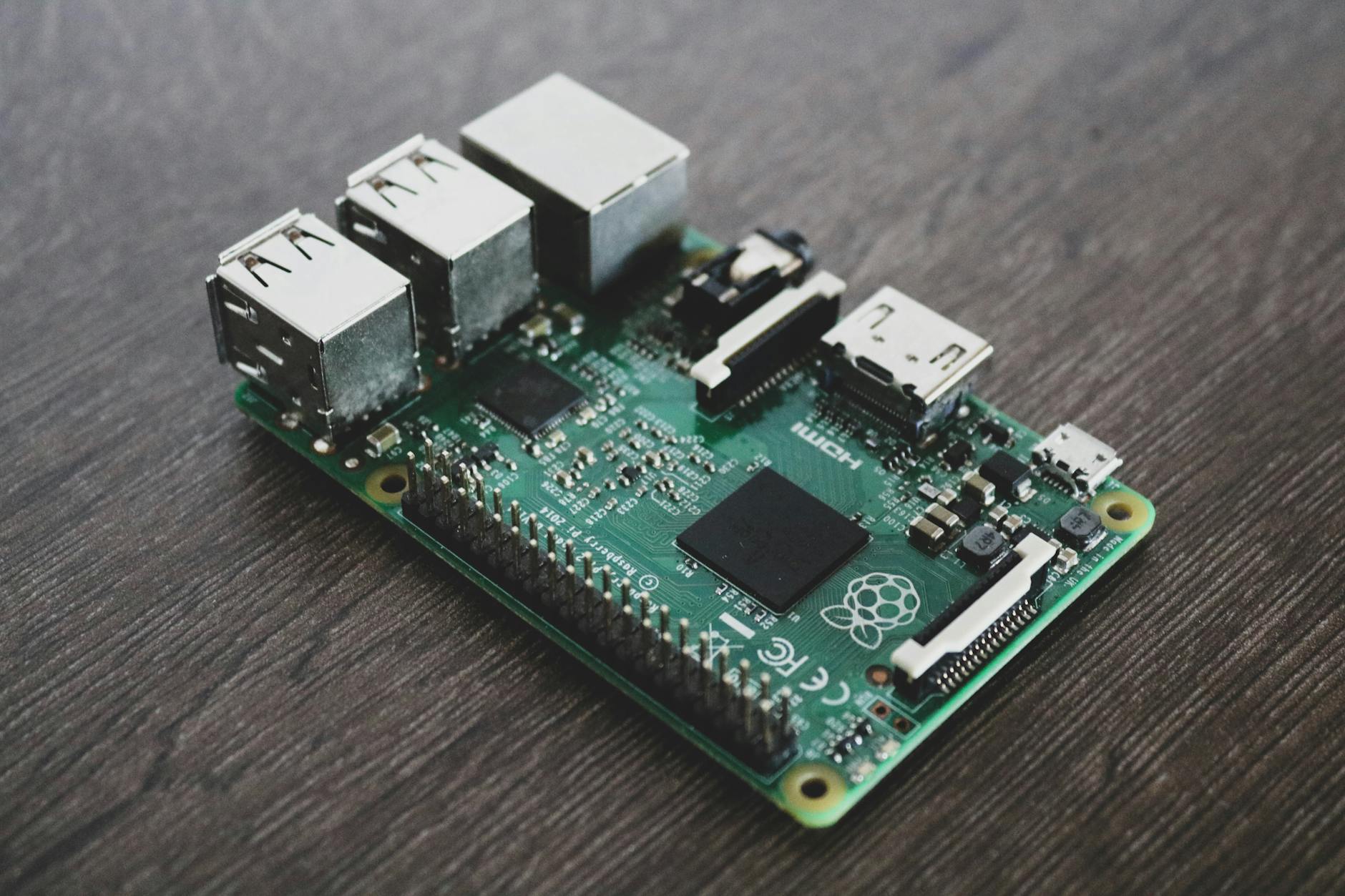
How to Set Up n8n Self-Hosted on a Raspberry Pi for Ultimate Automation Are you looking for a powerful, yet affordable solution for automating your tasks? Setting up n8n self-hosted on a Raspberry Pi can be an excellent choice. This guide will walk you through the entire process, from installing necessary software to configuring n8n for optimal performance. By the end of this article, you’ll have a fully functional automation platform ready to streamline your workflows. Why Use a Raspberry Pi? The Raspberry Pi is an excellent choice for self-hosting n8n due to its low cost and compact size. It’s perfect for home use or small businesses looking to automate tasks without breaking the bank. With a Raspberry Pi, you can keep your automation infrastructure on-premises, ensuring complete control over your data. Hardware Requirements To get started, you’ll need: – A Raspberry Pi 4 (recommended) – MicroSD card with at least 8GB of storage – Power supply (5V, 3A) – Ethernet cable or Wi-Fi adapter Setting Up the Raspberry Pi Begin by installing the latest version of Raspberry Pi OS on your MicroSD card. You can download it from the official Raspberry Pi website. Once installed, boot up your Raspberry Pi and update all packages using the following commands: sudo apt-get update sudo apt-get upgrade Installing n8n n8n can be easily installed on your Raspberry Pi using Docker. Docker containers provide a lightweight and portable way to run applications, ensuring that dependencies are managed correctly. Create a directory for n8n: mkdir ~/n8n cd ~/n8n Pull the official n8n Docker image: docker pull n8nio/n8n Run n8n using Docker: docker run -d –name n8n -p 5678:5678 n8nio/n8n Accessing the n8n Interface Once n8n is running, you can access it by opening a web browser and navigating to http://localhost:5678. You should see the n8n login page. The default username and password are both “admin”. It’s highly recommended to change these credentials immediately for security reasons. Configuring n8n n8n offers a wide range of connectors and nodes, allowing you to automate almost any process. To get started, create a new workflow by clicking on the “+” icon. Drag and drop nodes from the left panel onto the canvas. Connect these nodes with lines to define the flow of your automation. Example Workflow Let’s create a simple example workflow that checks for new emails in your inbox and sends an SMS notification if you receive one: Add a Google Sheets node to fetch emails from your inbox. Add a Twilio node to send an SMS notification. Connect the two nodes with a line and configure them accordingly. Conclusion By following these steps, you’ve successfully set up n8n self-hosted on your Raspberry Pi. This setup allows you to automate tasks efficiently without any monthly fees or dependencies on third-party services. With its flexibility and low cost, n8n is an excellent choice for anyone looking to streamline their workflows. Remember to regularly update n8n and monitor your system’s performance to ensure it remains stable and efficient. Happy automating! Image by: Alessandro Oliverio

Scroll to Top