 hemal
hemalHow to Set Up n8n Self-Hosted on a Raspberry Pi for Ultimate Automation
Are you tired of relying on cloud-based automation tools? Do you crave complete control and privacy over your data? Then, hosting n8n self-hosted on a Raspberry Pi is the perfect solution! This article will guide you through the entire setup process, from hardware considerations to initial configuration. We’ll cover everything you need to know to create a powerful and reliable automation hub right on your own device. You’ll learn how to install n8n, configure it for optimal performance, and leverage its capabilities for complex workflows. Get ready to unlock the full potential of automation with a Raspberry Pi!
Choosing the Right Raspberry Pi for n8n
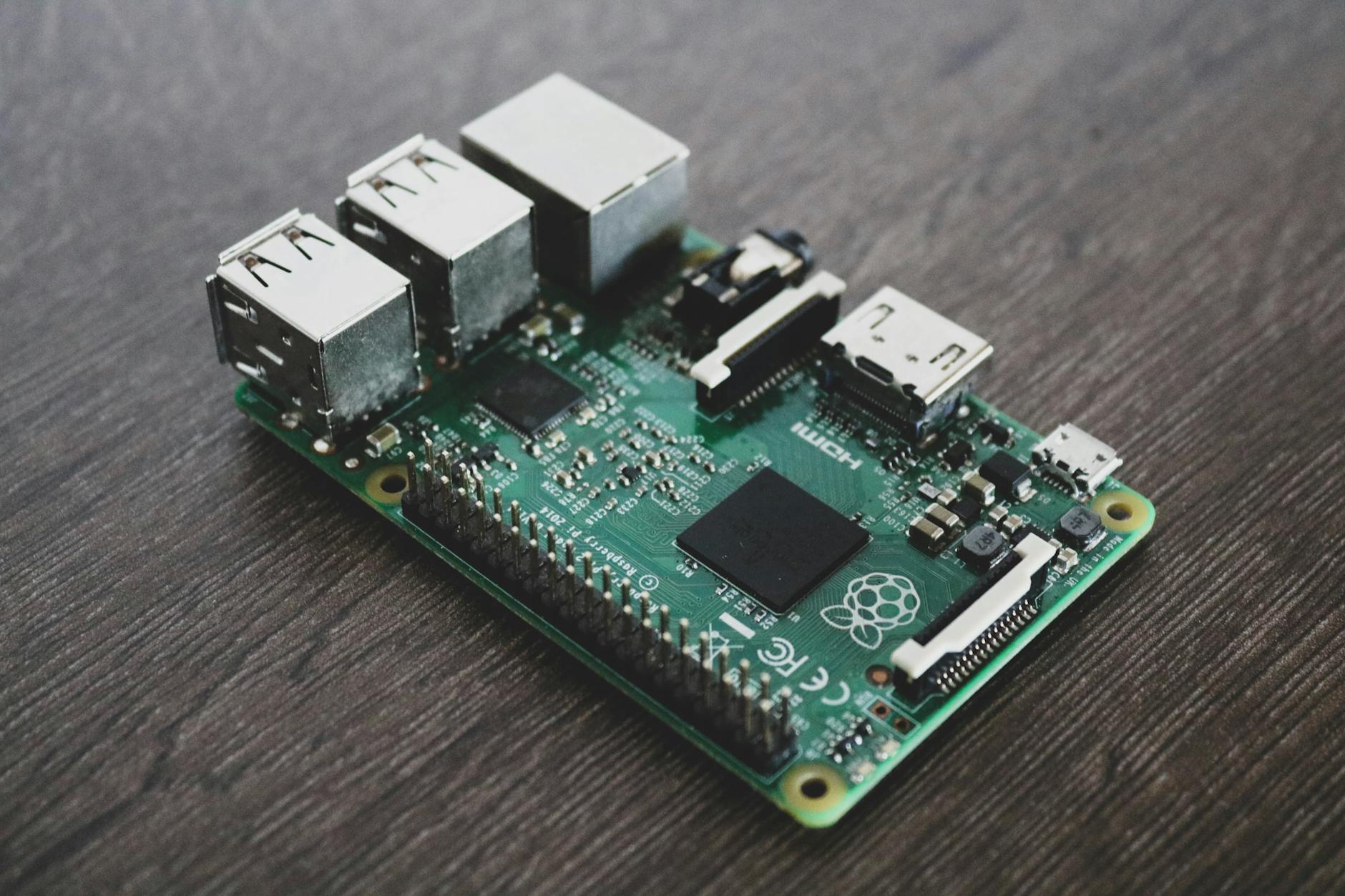
The Raspberry Pi is a popular choice for hosting n8n, but the model you select significantly impacts performance. Here’s a breakdown of suitable options and their considerations. A Raspberry Pi 4 Model B with at least 4GB of RAM is highly recommended for a smooth experience processing complex workflows. While 2GB can work for simpler tasks, 4GB or 8GB is preferable if you anticipate significant automation activity. Older models like the Pi 3 B+ can still function but will have performance limitations, especially when dealing with numerous integrations and large data volumes. Consider your expected workload and budget when making your decision.
RAM Requirements
n8n is memory-intensive. The more RAM you have, the more integrations, data, and running workflows it can handle concurrently. As a general rule, 4GB is a good starting point, but 8GB provides much better headroom for future growth and more demanding scenarios. Insufficient RAM leads to slowdowns, crashes, and overall poor performance. Monitor your system’s memory usage to identify potential bottlenecks. Using less RAM doesn’t necessarily mean better performance; it often means decreased automation capabilities.
Storage Considerations
While a microSD card is common for Raspberry Pi installations, consider using an external SSD for improved speed and reliability. SD cards can be prone to wear and tear, especially with constant read/write operations. An external SSD will significantly boost n8n’s performance and durability. The size of the SSD will depend on how many integrations, data, and workflows you plan to store. A minimum of 128GB is recommended, but 256GB or 512GB is better for long-term storage.
Installing n8n on your Raspberry Pi
Now that you have your Raspberry Pi ready, it’s time to install n8n. The recommended method is using Docker, as it simplifies the setup and ensures compatibility. Docker provides a containerized environment, isolating n8n from your host operating system and avoiding potential conflicts. Follow these steps:
Using Docker Compose
Docker Compose allows you to define and manage multi-container Docker applications. Here’s how to use it to install n8n:
- Install Docker and Docker Compose: Visit the official Docker website to obtain the appropriate installation instructions for your Raspberry Pi. Docker Desktop is an easier way to install and manage Docker on your Raspberry Pi.
- Create a `docker-compose.yml` file: Create a new directory on your Raspberry Pi and navigate to it. Then create a file named `docker-compose.yml` with the following content:
- Start n8n: Navigate back to the directory where you saved `docker-compose.yml` and run the following command:
- Access n8n: Open your web browser and navigate to `http://your_raspberry_pi_ip:8080`. You should see the n8n login page.
 `version: "3.9"`
 `services:`
 `n8n`:
  `image: n8n/n8n:latest`
  `ports: `
   - "8080:8080"
  `volumes: `
   - n8n_data:/data
  `restart: always`
 `db`:
  `image: postgres:14`
  `environment: `
   - POSTGRES_USER=n8n
   - POSTGRES_PASSWORD=your_password
   - POSTGRES_DB=n8n
  `volumes: `
   - n8n_db_data:/var/lib/postgresql/data
`docker-compose up -d`
Understanding Docker Compose Configuration
The `docker-compose.yml` file defines the services that make up your n8n installation. Here’s a breakdown of the key sections:
- `n8n` Service: Defines the n8n container, including the image to use, the port to expose (8080), and the volume to persist data.
- `db` Service: Defines the PostgreSQL database container, including the database user, password, and database name. You’ll need to create this database when you first set up n8n. The `volumes` section ensures the database data persists even if you stop and restart the containers.
Configuring n8n for Performance and Security
After installation, it’s crucial to configure n8n for optimal performance and security. Here are some key settings to consider:
Database Setup
n8n requires a database to store its configuration and workflow data. We’ve set up a PostgreSQL database in the Docker Compose configuration. You’ll need to create the database and user when you first access n8n. Avoid using the default credentials provided in the `docker-compose.yml` file for production environments. Create a strong password for the `n8n` database user.
Security Best Practices
Protecting your n8n instance is essential. Implement the following security measures:
- Change the default password: Immediately change the default password for the `n8n` database user.
- Enable HTTPS: Use Let’s Encrypt to obtain a free SSL certificate and enable HTTPS for secure communication.
- Restrict access: Configure firewall rules to restrict access to n8n to only trusted IP addresses.
- Regularly update n8n: Keep n8n up to date to patch security vulnerabilities.
Resource Monitoring
Continuously monitor your Raspberry Pi’s resource usage (CPU, RAM, storage) to identify and address potential performance issues. Tools like `top`, `htop`, and `iotop` can help you monitor resource utilization. If you experience performance bottlenecks, consider upgrading to a more powerful Raspberry Pi model or optimizing your workflows.
Scaling n8n for Increased Automation Needs
As your automation needs grow, you may need to scale your n8n instance. Here are a few options:
Docker Scaling
You can scale n8n using Docker by running multiple n8n containers. This is particularly useful if you have a high volume of traffic or complex workflows. However, this requires more advanced Docker knowledge.
External Database
For large datasets, consider using an external database like MySQL or MongoDB. This will allow n8n to store data more efficiently and handle larger volumes of data.
Cloud Hosting
If you require even greater scalability and reliability, consider hosting n8n on a cloud platform like AWS or Google Cloud. This provides a managed environment for n8n, relieving you of the burden of managing infrastructure.
Conclusion
Hosting n8n self-hosted on a Raspberry Pi provides a cost-effective and powerful solution for automating tasks. By carefully selecting your Raspberry Pi, following the installation steps, and configuring n8n for optimal performance and security, you can create a robust and reliable automation hub. Remember to monitor resource usage and scale your instance as needed to accommodate your growing automation requirements. With n8n on a Raspberry Pi, you’re empowering yourself with complete control, enhanced privacy, and the flexibility to build truly customized automation workflows. Now you have the capability to really make your life easier and automate tasks previously requiring manual intervention. Enjoy the freedom and power of DIY automation!
Image by: Alessandro Oliverio