
Docker setup

N8N

Migrating to n8n Self-Hosted from a SaaS Platform: A Complete Checklist

Migrating to n8n Self-Hosted from a SaaS Platform: A Complete Checklist Are you tired of the limitations and costs associated with using a SaaS platform? Do you want more control over your data and processes? Migrating to n8n self-hosted can be the solution. This comprehensive guide will walk you through every step of the process, ensuring a smooth transition and maximizing the benefits of self-hosting. Evaluating Your Current SaaS Platform Before making the decision to migrate, it’s crucial to evaluate your current SaaS platform. Consider the following: What are your specific needs? Are there any limitations or bottlenecks? How does the pricing model compare? Do you have control over your data and processes? Setting Up n8n Self-Hosted Setting up n8n self-hosted involves several steps. Here’s a quick overview: Install Docker: Ensure you have Docker installed on your server. Create Environment Variables: Set up the necessary environment variables for n8n. Pull and Run the Container: Use Docker commands to pull and run the n8n container. Importing Your Workflows Once your n8n instance is up and running, it’s time to import your workflows from your SaaS platform. Export from SaaS: Export your workflows in a compatible format. Import into n8n: Use the n8n UI or API to import the workflows. Customizing and Optimizing n8n After importing, you’ll need to customize and optimize your n8n instance. Create Custom Nodes: If necessary, create custom nodes to integrate with your specific needs. Configure Triggers: Set up triggers for automated workflows. Optimize Performance: Tune settings for better performance and scalability. Security Considerations Security is a critical aspect of self-hosting. Implement the following measures: Use HTTPS: Ensure your n8n instance uses a secure connection. Regular Backups: Set up regular backups to protect your data. Access Control: Implement strict access controls and authentication methods. Training Your Team Finally, it’s time to train your team on using n8n. Workshop Sessions: Organize training sessions to familiarize team members with the platform. Documentation: Provide comprehensive documentation and support resources. Feedback Loop: Establish a feedback loop for continuous improvement. Conclusion Migrating to n8n self-hosted can significantly enhance your workflow flexibility, data control, and overall satisfaction. By following this comprehensive checklist, you’ll be well-equipped to make the transition smoothly and maximize the benefits of self-hosting. Image by: Jakub Zerdzicki

N8N

How to Set Up n8n Self-Hosted on a Raspberry Pi for Ultimate Automation

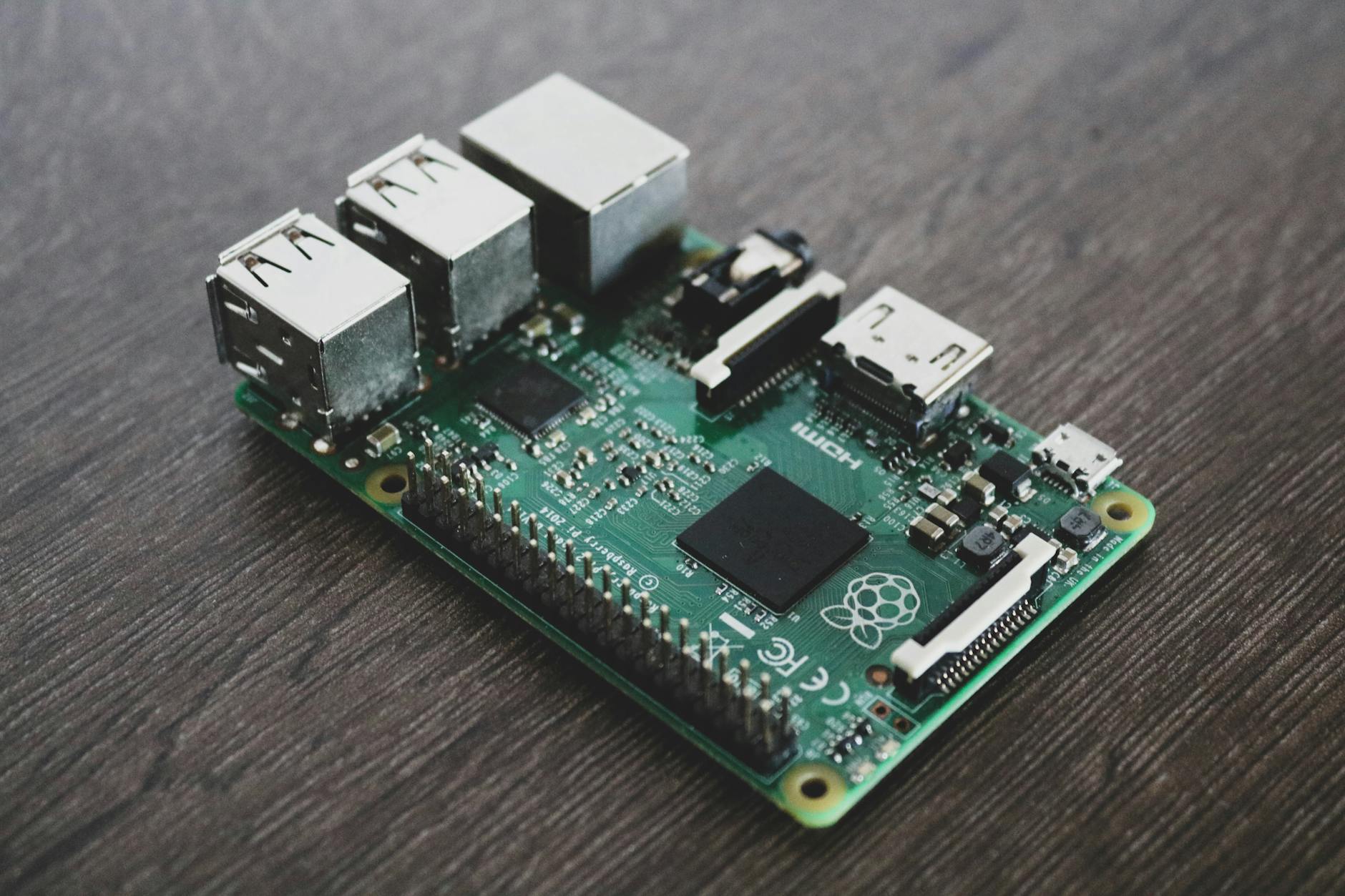
How to Set Up n8n Self-Hosted on a Raspberry Pi for Ultimate Automation Are you looking for a powerful, yet affordable solution for automating your tasks? Setting up n8n self-hosted on a Raspberry Pi can be an excellent choice. This guide will walk you through the entire process, from installing necessary software to configuring n8n for optimal performance. By the end of this article, you’ll have a fully functional automation platform ready to streamline your workflows. Why Use a Raspberry Pi? The Raspberry Pi is an excellent choice for self-hosting n8n due to its low cost and compact size. It’s perfect for home use or small businesses looking to automate tasks without breaking the bank. With a Raspberry Pi, you can keep your automation infrastructure on-premises, ensuring complete control over your data. Hardware Requirements To get started, you’ll need: – A Raspberry Pi 4 (recommended) – MicroSD card with at least 8GB of storage – Power supply (5V, 3A) – Ethernet cable or Wi-Fi adapter Setting Up the Raspberry Pi Begin by installing the latest version of Raspberry Pi OS on your MicroSD card. You can download it from the official Raspberry Pi website. Once installed, boot up your Raspberry Pi and update all packages using the following commands: sudo apt-get update sudo apt-get upgrade Installing n8n n8n can be easily installed on your Raspberry Pi using Docker. Docker containers provide a lightweight and portable way to run applications, ensuring that dependencies are managed correctly. Create a directory for n8n: mkdir ~/n8n cd ~/n8n Pull the official n8n Docker image: docker pull n8nio/n8n Run n8n using Docker: docker run -d –name n8n -p 5678:5678 n8nio/n8n Accessing the n8n Interface Once n8n is running, you can access it by opening a web browser and navigating to http://localhost:5678. You should see the n8n login page. The default username and password are both “admin”. It’s highly recommended to change these credentials immediately for security reasons. Configuring n8n n8n offers a wide range of connectors and nodes, allowing you to automate almost any process. To get started, create a new workflow by clicking on the “+” icon. Drag and drop nodes from the left panel onto the canvas. Connect these nodes with lines to define the flow of your automation. Example Workflow Let’s create a simple example workflow that checks for new emails in your inbox and sends an SMS notification if you receive one: Add a Google Sheets node to fetch emails from your inbox. Add a Twilio node to send an SMS notification. Connect the two nodes with a line and configure them accordingly. Conclusion By following these steps, you’ve successfully set up n8n self-hosted on your Raspberry Pi. This setup allows you to automate tasks efficiently without any monthly fees or dependencies on third-party services. With its flexibility and low cost, n8n is an excellent choice for anyone looking to streamline their workflows. Remember to regularly update n8n and monitor your system’s performance to ensure it remains stable and efficient. Happy automating! Image by: Alessandro Oliverio

Scroll to Top