
DevOps tools

N8N

Step-by-Step Guide: Installing n8n Self-Hosted in Docker on Your Local Server

Step-by-Step Guide: Installing n8n Self-Hosted in Docker on Your Local Server Welcome to this comprehensive guide on installing n8n, a powerful workflow automation tool, self-hosted using Docker. This tutorial will walk you through the entire process from setting up your local server to configuring n8n for optimal performance. By following these steps, you’ll have a fully functional n8n instance running on your own server, ready to automate tasks with ease. | n8n self-hosted Docker installation Prerequisites To begin installing n8n self-hosted in Docker, make sure your local server meets the following requirements: Docker and Docker Compose: Ensure both Docker and Docker Compose are installed on your machine. You can download them from the official Docker website. Minimum System Requirements: A basic server setup with at least 2GB of RAM and sufficient disk space. Installing Docker and Docker Compose Before proceeding, let’s quickly set up Docker and Docker Compose on your system. Follow the official installation guides: Docker Installation Guide Docker Compose Installation Guide Creating the Docker Compose File Next, create a directory on your server where you’ll store all n8n files. Navigate to this directory and create a new file named `docker-compose.yml`. Open it in your preferred text editor and paste the following content: version: ‘3’ services: n8n: image: n8nio/n8n container_name: n8n restart: unless-stopped environment: – NODE_ENV=production – DB_TYPE=sqlite – WEBHOOK_URL=http://localhost:5678/webhook ports: – 5678:5678 – 5679:5679 volumes: – ./data:/home/node/.n8n/data This configuration sets up a basic n8n instance with SQLite as the database. Adjust the `WEBHOOK_URL` as needed based on your server’s IP address and port. Starting n8n Using Docker Compose To start n8n, run the following command in the terminal: docker-compose up -d This command will download the necessary Docker image and start the n8n container. You can check the status of the container with: docker-compose ps Accessing the n8n Web Interface Once the container is up and running, open a web browser and navigate to http://localhost:5678. You should see the n8n login page. The default username and password are both `admin`. Be sure to change these immediately for security reasons. Configuring n8n for Optimal Performance To optimize your n8n setup, consider the following configurations: Enabling SSL/TLS: For secure communication, set up an SSL certificate. You can use Let’s Encrypt for free certificates. Increasing Resources: If you’re running complex workflows, ensure your server has enough resources. Adjust the memory and CPU limits in Docker if necessary. Customizing Webhook URLs: Configure webhook URLs according to your needs. This might involve setting up reverse proxies or using a service like ngrok for local development. Conclusion Congratulations on successfully installing n8n self-hosted in Docker on your local server! With this setup, you have a powerful tool at your disposal for automating workflows. Remember to regularly update n8n and its dependencies to ensure optimal performance and security. Happy automating! Image by: Brett Sayles

N8N

How to Set Up n8n Self-Hosted on a Raspberry Pi for Ultimate Automation

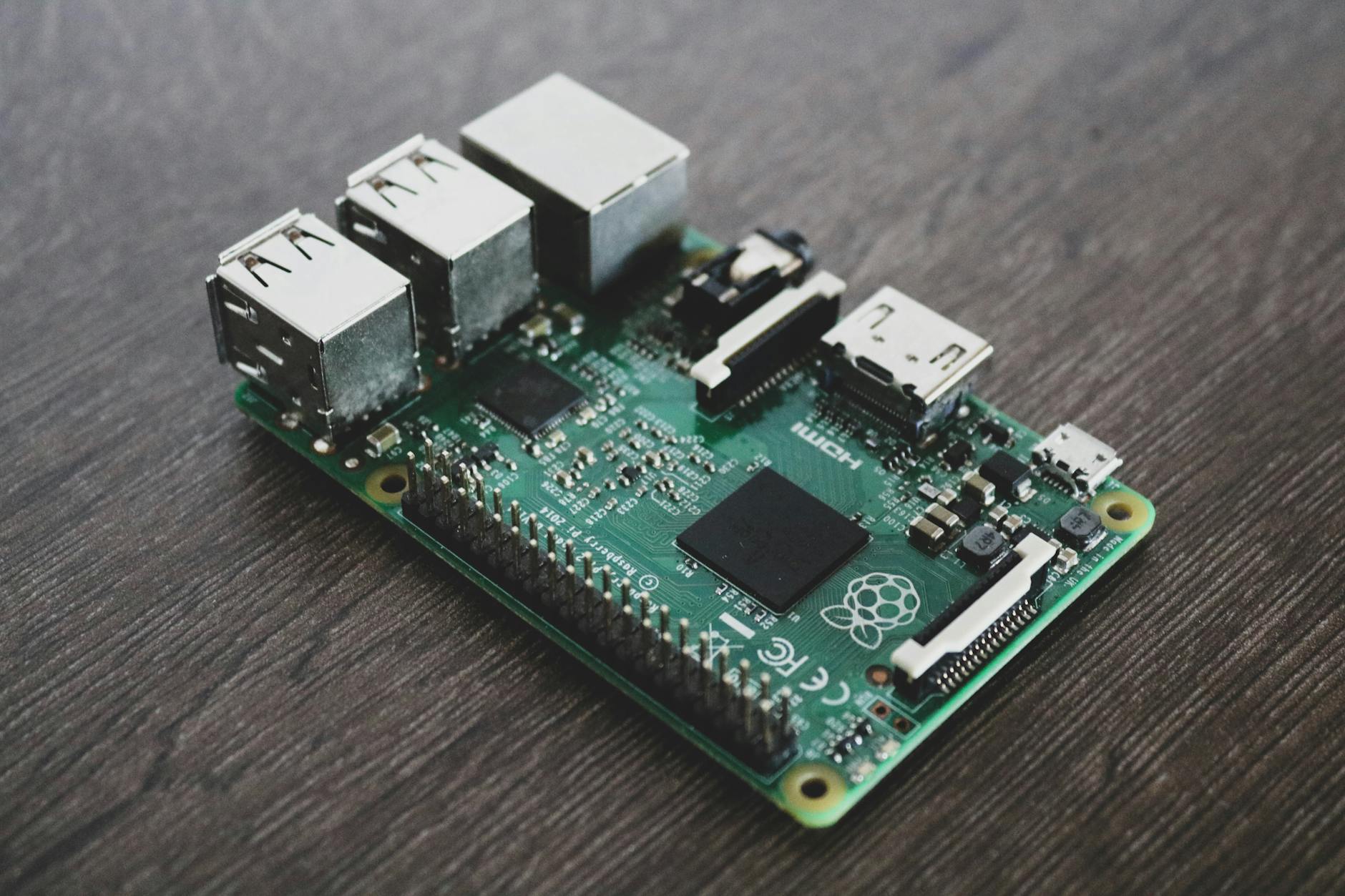
How to Set Up n8n Self-Hosted on a Raspberry Pi for Ultimate Automation Are you looking for a powerful, yet affordable solution for automating your tasks? Setting up n8n self-hosted on a Raspberry Pi can be an excellent choice. This guide will walk you through the entire process, from installing necessary software to configuring n8n for optimal performance. By the end of this article, you’ll have a fully functional automation platform ready to streamline your workflows. Why Use a Raspberry Pi? The Raspberry Pi is an excellent choice for self-hosting n8n due to its low cost and compact size. It’s perfect for home use or small businesses looking to automate tasks without breaking the bank. With a Raspberry Pi, you can keep your automation infrastructure on-premises, ensuring complete control over your data. Hardware Requirements To get started, you’ll need: – A Raspberry Pi 4 (recommended) – MicroSD card with at least 8GB of storage – Power supply (5V, 3A) – Ethernet cable or Wi-Fi adapter Setting Up the Raspberry Pi Begin by installing the latest version of Raspberry Pi OS on your MicroSD card. You can download it from the official Raspberry Pi website. Once installed, boot up your Raspberry Pi and update all packages using the following commands: sudo apt-get update sudo apt-get upgrade Installing n8n n8n can be easily installed on your Raspberry Pi using Docker. Docker containers provide a lightweight and portable way to run applications, ensuring that dependencies are managed correctly. Create a directory for n8n: mkdir ~/n8n cd ~/n8n Pull the official n8n Docker image: docker pull n8nio/n8n Run n8n using Docker: docker run -d –name n8n -p 5678:5678 n8nio/n8n Accessing the n8n Interface Once n8n is running, you can access it by opening a web browser and navigating to http://localhost:5678. You should see the n8n login page. The default username and password are both “admin”. It’s highly recommended to change these credentials immediately for security reasons. Configuring n8n n8n offers a wide range of connectors and nodes, allowing you to automate almost any process. To get started, create a new workflow by clicking on the “+” icon. Drag and drop nodes from the left panel onto the canvas. Connect these nodes with lines to define the flow of your automation. Example Workflow Let’s create a simple example workflow that checks for new emails in your inbox and sends an SMS notification if you receive one: Add a Google Sheets node to fetch emails from your inbox. Add a Twilio node to send an SMS notification. Connect the two nodes with a line and configure them accordingly. Conclusion By following these steps, you’ve successfully set up n8n self-hosted on your Raspberry Pi. This setup allows you to automate tasks efficiently without any monthly fees or dependencies on third-party services. With its flexibility and low cost, n8n is an excellent choice for anyone looking to streamline their workflows. Remember to regularly update n8n and monitor your system’s performance to ensure it remains stable and efficient. Happy automating! Image by: Alessandro Oliverio

Scroll to Top